

Your shopping cart is empty.
Start shopping now!
Start shopping now!
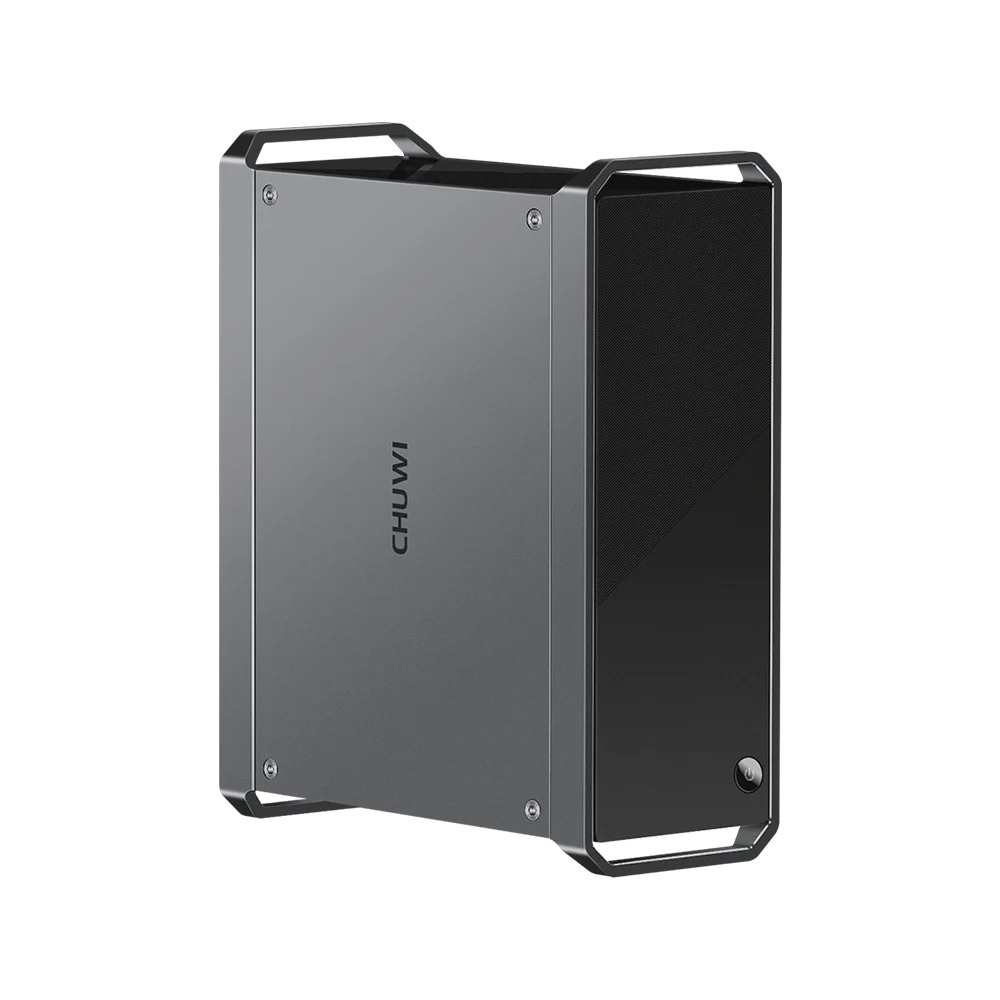
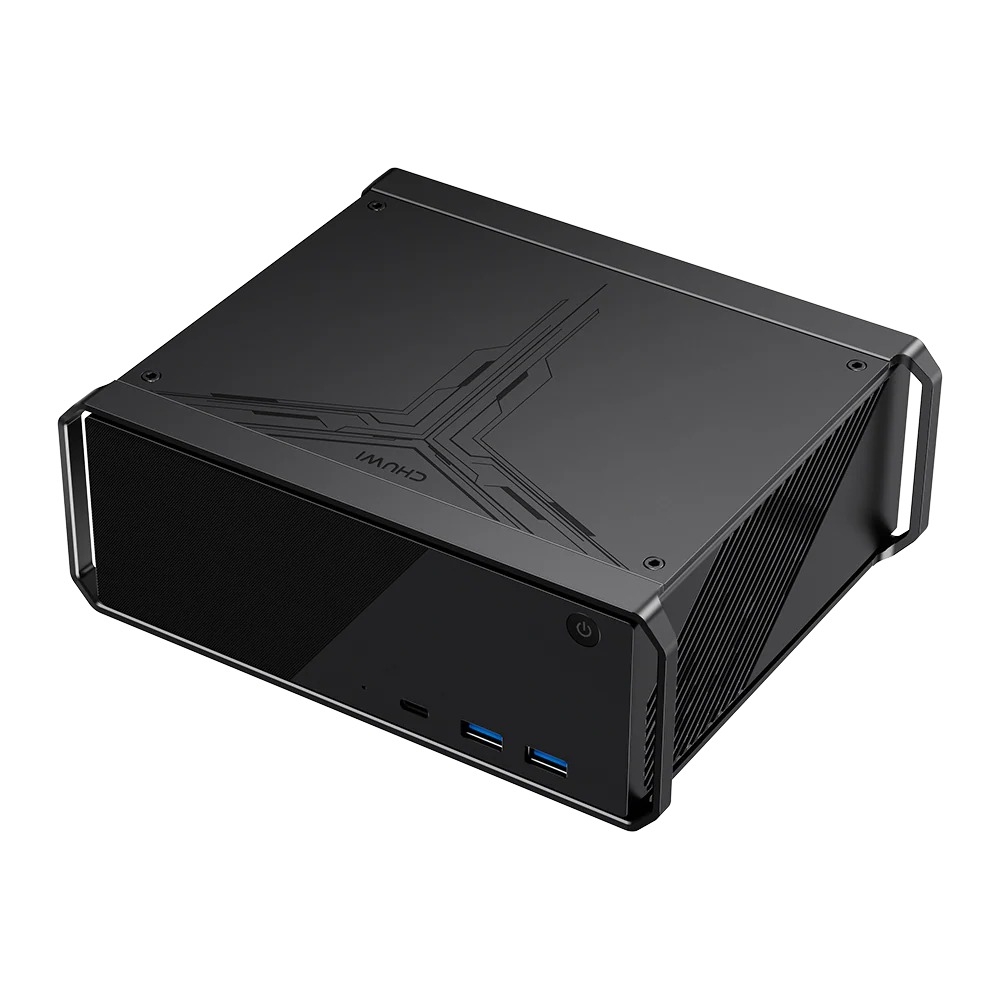
Be the First to Experience the Whisper-Quiet AuBox X1 AI PC.



There could be several reasons why Bluetooth is not working on your tablet. Here are a few troubleshooting steps you can try:
1. Make sure that Bluetooth is turned on: Go to your tablet's settings and check if Bluetooth is turned on. If it's turned off, turn it on and try connecting again.
2. Restart your tablet: Sometimes, simply restarting your tablet can help fix the issue. Try turning it off and on again.
3. Make sure the device you're trying to connect to is compatible: Ensure that the device you're trying to connect to is compatible with your tablet's Bluetooth version.
4. Clear Bluetooth cache: Go to your tablet's settings, find the Bluetooth menu, and clear the cache. This will remove any corrupted data that might be interfering with the connection.
5. Check for interference: Bluetooth signals can be blocked by other wireless signals, so make sure there are no other wireless devices nearby that might be causing interference.
6. Check for updates: Make sure your tablet is up to date with the latest software updates, as this can sometimes fix Bluetooth issues.
If none of these steps work, it's possible that there's a hardware issue with your tablet's Bluetooth. In this case, you can contact us with the serial number of the device for assistance.
There could be several reasons why Bluetooth is not working on the tablet. Here are a few troubleshooting steps you can try:
1. Make sure that Bluetooth is turned on: Go to your tablet's settings and check if Bluetooth is turned on. If it's turned off, turn it on and try connecting again.
2. Restart your tablet: Sometimes, simply restarting the tablet can help fix the issue. Try turning it off and on again.
3. Make sure the device you're trying to connect to is compatible: Ensure that the device you're trying to connect to is compatible with your tablet's Bluetooth version.
4. Clear Bluetooth cache: Go to your tablet's settings, find the Bluetooth menu, and clear the cache. This will remove any corrupted data that might be interfering with the connection.
5. Check for interference: Bluetooth signals can be blocked by other wireless signals, so make sure there are no other wireless devices nearby that might be causing interference.
6. Check for updates: Make sure your tablet is up to date with the latest software updates, as this can sometimes fix Bluetooth issues.
If none of these steps work, it's possible that there's a hardware issue with your tablet's Bluetooth. In this case, you can contact us with the serial number of the device for assistance.
If your tablet is not charging, there could be several reasons why:
1. Faulty charger or cable: One of the most common reasons why a tablet won't charge is due to a faulty charger or cable. Check if the charger and cable are in good condition and try using a different charger and cable to see if it works.
2. Battery issues: The battery may be drained or damaged, preventing it from charging. If the battery is fully drained, you may need to leave the tablet charging for a while before it starts charging again. If the battery is damaged, it may need to be replaced.
3. Software issues: Sometimes, software issues can prevent the tablet from charging. Try restarting the tablet or performing a software update to see if it resolves the issue.
4. Charging port issues: The charging port may be damaged or blocked, preventing the charger from making a proper connection. Check if the charging port is clean and free of debris, and try using a different charger to see if it works.
5. Overheating: If the tablet gets too hot, it may stop charging to prevent damage to the battery. Try charging the tablet in a cooler environment or turning it off while charging.
If none of these steps work, there might be a battery or motherboard hardware issue with the tablet, you can contact us with the serial number of the device for support.
Serial number usually can be found on the bottom side of the product, some of the products such as Hipad X have the serial number on the SIM card slot.
Some of CHUWI tablets, such as Hipad Max, were designed to automatically power on when connected to an adaptor in shut-down state, so you won't miss any important message or phone call, it's not a product defect.
If your tablet is frozen at the startup logo interface, you can try the following steps to resolve the issue:
1. Perform a soft reset: Press and hold the power button for about 10-15 seconds until the device turns off, then release the button and try to turn it back on.
2. Charge the tablet: Ensure that your tablet has enough charge, and then try to turn it on again.
3. Factory reset: If none of the above steps work, you may need to perform a factory reset. This will erase all data and settings on the device, so make sure to back up any important data before proceeding. The steps for performing a factory reset can vary depending on the device model, so you can check the device manual or look online for specific instructions.
If the issue persists even after trying all the above steps, it may be a hardware issue, you can contact us with serial number of the device for assistance.
Backing up your tablet data is essential to prevent data loss in case of damage or loss of the device. Here are the steps to backup your tablet data:
1. Use Cloud Storage: You can use cloud storage services such as Google Drive, OneDrive, or Dropbox to backup your data. These services allow you to upload your data to the cloud and access it from anywhere using any device.
2. Connect to Your Computer: You can backup your tablet data to your computer using a USB cable. Connect your tablet to your computer, and then transfer your data to your computer's hard drive.
3. Use Third-Party Backup Apps: There are several third-party backup apps available on the app store. These apps allow you to backup your data to the cloud or your computer. You can choose the app that suits your needs and preferences.
It's important to make sure you backup your data regularly to prevent data loss.
No, currently CHUWI tablets doesn's support 5G mobile data reception, but all CHUWI tablets are compatible with 5G WiFi band.